
To produce clean visuals without AI-generated images, I connect Claude to a design tool (Figma or Canva) through an MCP connector. Claude draws inside the tool, with my colors, my exact text and the right format. I touch things up if needed, then export. No image prompt, no lottery.
Why I stopped using AI images
An image generated from a rough prompt gives itself away fast: distorted text, objects that are almost right, the smooth look of stock photography. On a SaaS site, that sends the wrong signal. A product that sells reliability can’t illustrate its pages with visuals that look improvised. That’s my opinion, not a study, but I see it in other people’s work as much as in mine.
There is also a practical problem: numbers. On a key-figures infographic, a garbled “47%” is a published mistake. My rule: no generative image for anything that contains text or a number. That leaves the question of producing those visuals fast, without spending a day in a design tool.
The idea: Claude draws inside the tool
An MCP connector gives Claude control of Figma or Canva. I no longer write an image prompt but a spec: exact content, colors in hexadecimal, format, position of each element. Claude creates the text and shapes, imports the logo, checks the result with a screenshot, fixes it, then exports. The output stays editable by hand in the tool.
Test 1: Figma, very fast
For a Black Friday guide, I needed six visuals: key figures, calendar, a sequence of three emails, an SMS, subject line and preheader, an illustrative heatmap. With Figma, Claude built them in under six minutes, including high-resolution export and WebP conversion. The email and SMS mockups use a fictional brand (“Maison Lumen”), so no real recipient appears.
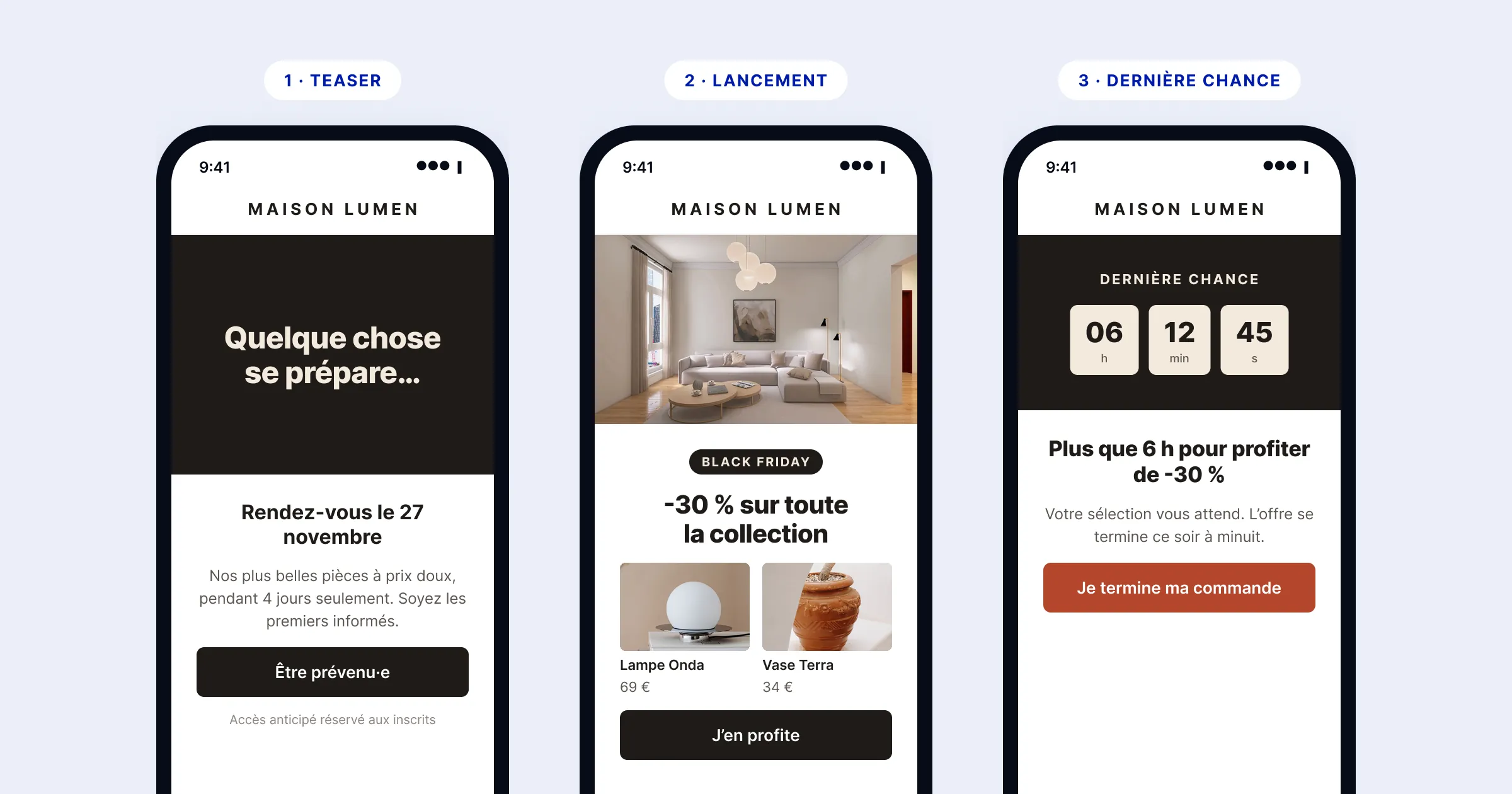
Figma works through code: Claude runs JavaScript against the plugin API, so layout is precise from the first pass. One hiccup: an SMS emoji didn’t render with the chosen font, fixed along the way.
The wall: the free plan’s call limit
I then dropped the photos and the logo into the file and asked Claude to place them. Figma’s answer: the connector’s call limit was reached on the Starter plan. Nothing worked anymore, not even a read. I had used about twenty calls, and the message doesn’t say when the counter resets. Figma’s documentation describes the limits by plan.
The fallback that day: insert the photos and the logo locally, straight into the exported PNGs. It works, but the Figma file is no longer up to date. My lesson: on a free plan, a connector is a budget of calls. I batch operations and keep some room for revisions, because that’s where I hit the wall.
Test 2: Canva, with the subscription
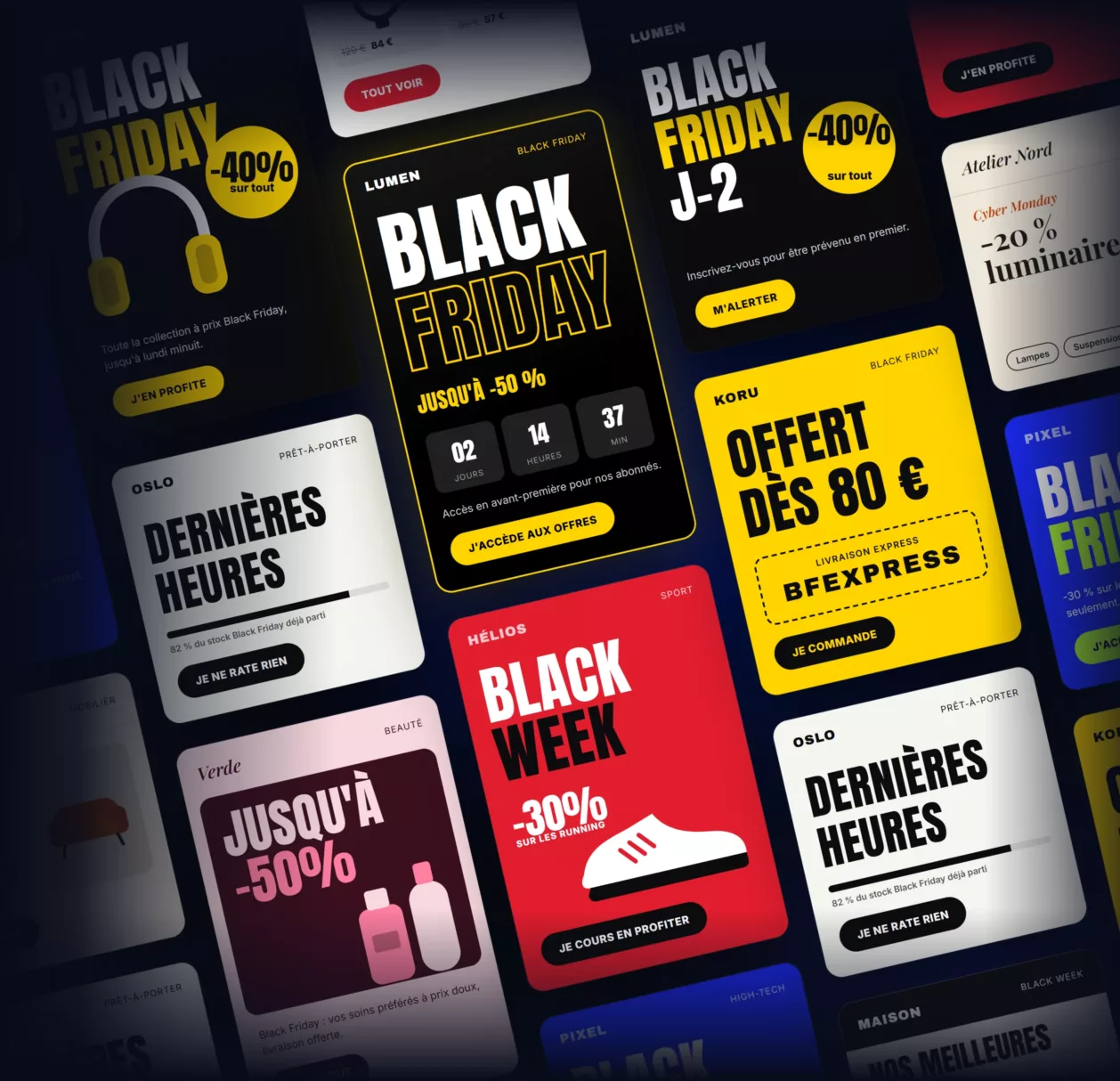
The same day, I moved to Canva, where I have a subscription. Test on the calendar timeline: six minutes too, but with more friction.
- The requested format isn’t respected (a 1080×1920 story instead of 1080×1350), and the automatic resize breaks the layout: Claude repositioned about forty elements one by one.
- The generated background leaves blurry traces: I replace it with a flat fill in the brand color.
- The brand blue is approximate and a separator shows up as a black square: fixed by hand.
- No gradients, no drop shadows, no auto layout.
Since then, the method has settled:
- create a page at the exact dimensions from the start, instead of resizing;
- pull fonts, colors and logo from the Brand Kit;
- render emails and SMS as HTML with a headless browser, then import them as images, for realistic mockups;
- export as PNG, then convert to WebP under 150 KB.
Two safeguards to know about. Canva requires me to approve a preview before each save. And a session left idle loses unsaved changes: it happened once, two visuals to redo. So I approve as soon as a series is finished.
Figma or Canva?
| Figma (Starter plan) | Canva (subscription) | |
|---|---|---|
| Speed | 6 visuals in under 6 minutes | 1 visual in 6 minutes, with fixes |
| Precision | Layout through code, free choice of fonts | Everything positioned by hand, font via the Brand Kit |
| Rendering | Gradients and shadows possible | No gradients, no shadows |
| Limit | Call quota hit in one session | Preview to approve, session that expires |
| Brand | Brand fonts to install | Centralized Brand Kit |
Figma felt clearly faster and more precise, but a limited plan stops you mid-production. Canva is slower and more rigid, but it doesn’t stop: it’s the one I use day to day. I haven’t tested Figma on a paid plan, so the comparison might change.
My method today
- Any visual that contains text or numbers goes through a design tool driven by Claude, never through a generated image.
- Email and SMS mockups are HTML rendered locally, then imported.
- Anything showing a product is a real screenshot, anonymized when needed.
- Every infographic exists in two formats: horizontal for social networks, vertical (1080×1350) for the article.
Key takeaway
The gain doesn’t come from AI inventing the image, but from AI executing a precise brief in a tool I already master. The result is accurate, on brand and editable. On a free plan, count your calls; with a subscription, approve your previews without delay.